
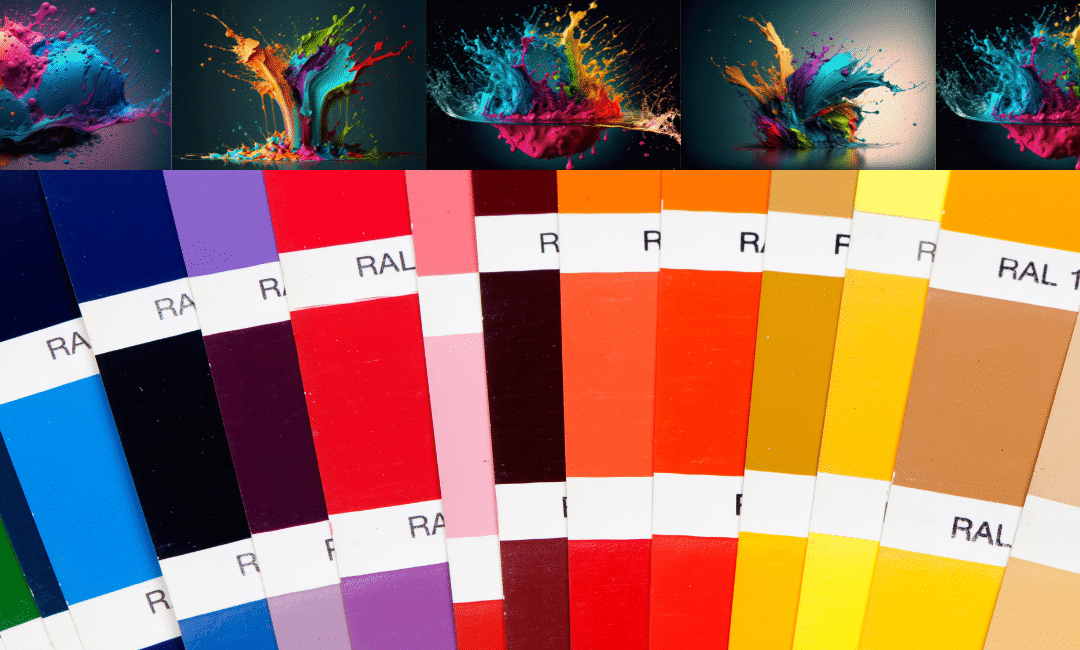
How to Pick a Color with a Color Picker Tool (Beginner-Friendly Guide)
If you want to design a logo, build a website, edit images, or match branding colors, you need the exact color code — not “almost red” or “kind of purple.”
The easiest way to do this is by using a color picker tool.
In this guide, you’ll learn how to pick a color with a color picker tool step-by-step.
This article is simple, SEO-friendly, and gives you everything you need to start using color pickers like a pro.
What Is a Color Picker Tool?
A color picker tool is an online tool that helps you find and copy color values such as:
- HEX (
#ff5733) - RGB (
255, 87, 51) - HSL
- CMYK (for printing)
Color pickers let you select a color from:
- an image
- a website
- a design file
- or a color wheel
This makes them perfect for designers, developers, marketers, and creators.
Why Use a Color Picker Tool?
Here are the main reasons people use color pickers:
✔ Match exact colors from images
Useful for brand colors, product photos, and logos.
✔ Capture website colors
Designers can inspect any website color instantly.
✔ Create consistent branding
You can save and reuse the same colors across all designs.
✔ No software required
Most tools work online and are completely free.
✔ Works for beginners and professionals
Very simple UI — anyone can use it.
How to Pick a Color with a Color Picker Tool (Step-by-Step)
This is the easiest method, works with any online color picker:
Step 1: Open Your Color Picker Tool
Use any tool such as:
- Your website’s Online Color Picker
- Adobe Color Picker
- Chrome’s built-in color picker
- Photoshop / Figma pickers
Web-based tools are the simplest and free.
Step 2: Upload an Image or Open the Eyedropper
You can do two things:
Option 1 — Upload an image
Upload a logo, screenshot, or photo.
Option 2 — Use the screen eyedropper
This lets you pick colors from anywhere on your screen.
Step 3: Click on the Color You Want
Use the mouse to click the exact area containing the color.
The tool will instantly show:
- HEX code
- RGB code
- HSL values
- Preview of the selected color
Step 4: Copy the Color Code
Most tools display a “Copy” button next to the HEX value.
Example:
HEX: #3498db → Copy
Now you can use it in:
- Website design
- CSS
- Canva
- Photoshop
- Illustrator
- Mobile apps
- Brand guides
Step 5: Save or Export Your Color Palette
Good color picker tools also allow you to:
- Save colors
- Export your palette
- Name your colors
- Copy multiple codes at once
This helps keep your designs consistent and professional.
Tips for Picking the Perfect Color
✔ Zoom before selecting
Take a zoomed screenshot for more accurate color selection.
✔ Avoid shadows
Shadows or highlights can slightly change color perception.
✔ Use HEX for web design
It’s the most common format online.
✔ Use RGB for digital screens
Best for image editing.
✔ Use CMYK for printing
Gives accurate printed results.
Best Uses of Color Picker Tools
- Website color matching
- Creating logos & branding
- UI/UX design
- Social media posts
- Product packaging
- Photo editing
- YouTube thumbnails
- Flyer/Banner design
- E-commerce product presentation
FAQ — How to Pick a Color With a Color Picker Tool
1. Is a color picker tool free to use?
Yes! Most online tools are free and require no installation.
2. Can I pick a color from a website?
Yes, using the eyedropper feature or a browser extension.
3. Can I extract colors from photos?
Absolutely — upload your photo and click the color.
4. What is the easiest color code to use?
HEX is the most common and beginner-friendly.
5. Why does the color look different on screens?
Different screens have different brightness and color settings.
6. Can I create a full color palette?
Yes — most picker tools allow saving and exporting palettes.
Final Thoughts
Learning how to pick a color with a color picker tool is easy and extremely useful.
Whether you’re designing a website, creating a logo, making social media graphics, or matching brand colors, a color picker gives you precision and consistency.
Start using your Online Color Picker Tool today and make your designs look cleaner, more professional, and perfectly color-matched.